
AI Photo Editor
Edit photos with AI using simple text prompts. Change backgrounds, remove unwanted objects and adjust colors or lighting.
AI photo editing, your way.
Change the setting, refresh the colors or try a new look. See how text-guided photo editing transforms the room in this before-and-after example.
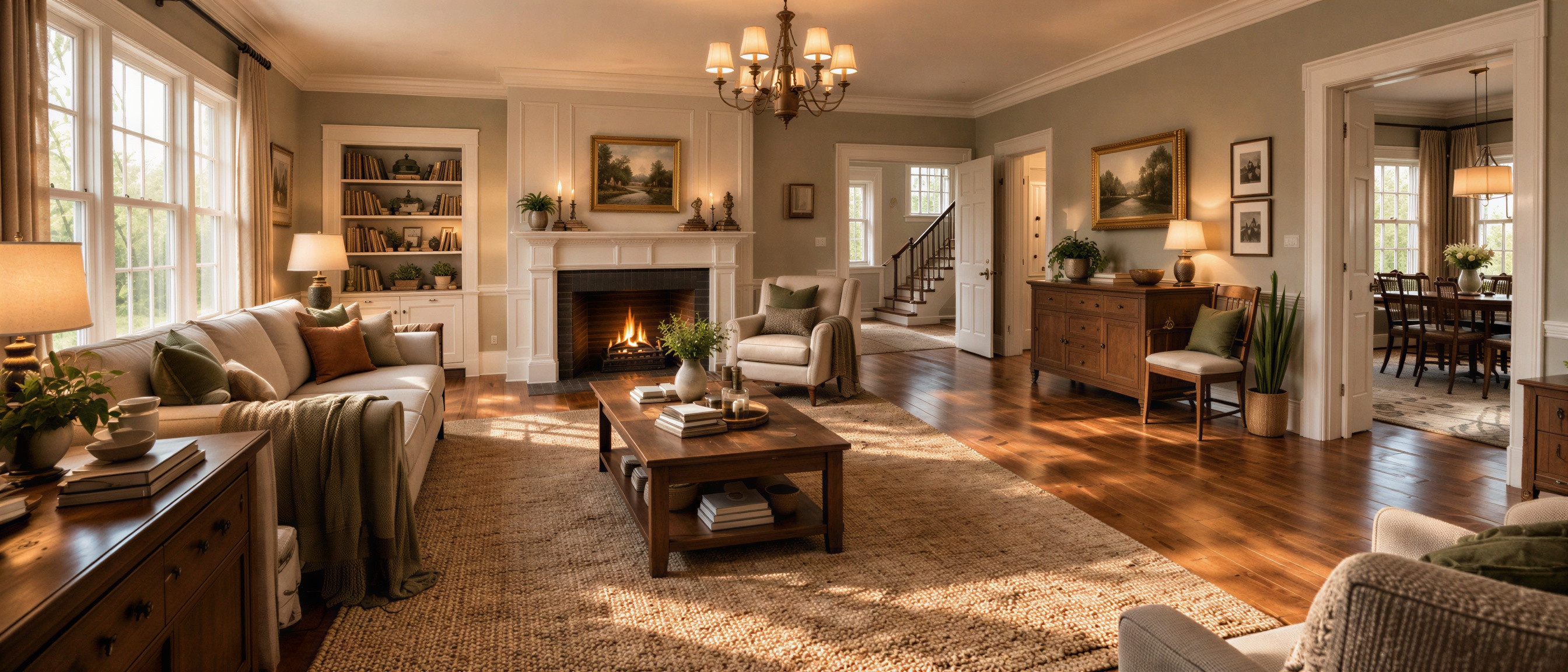 After
After
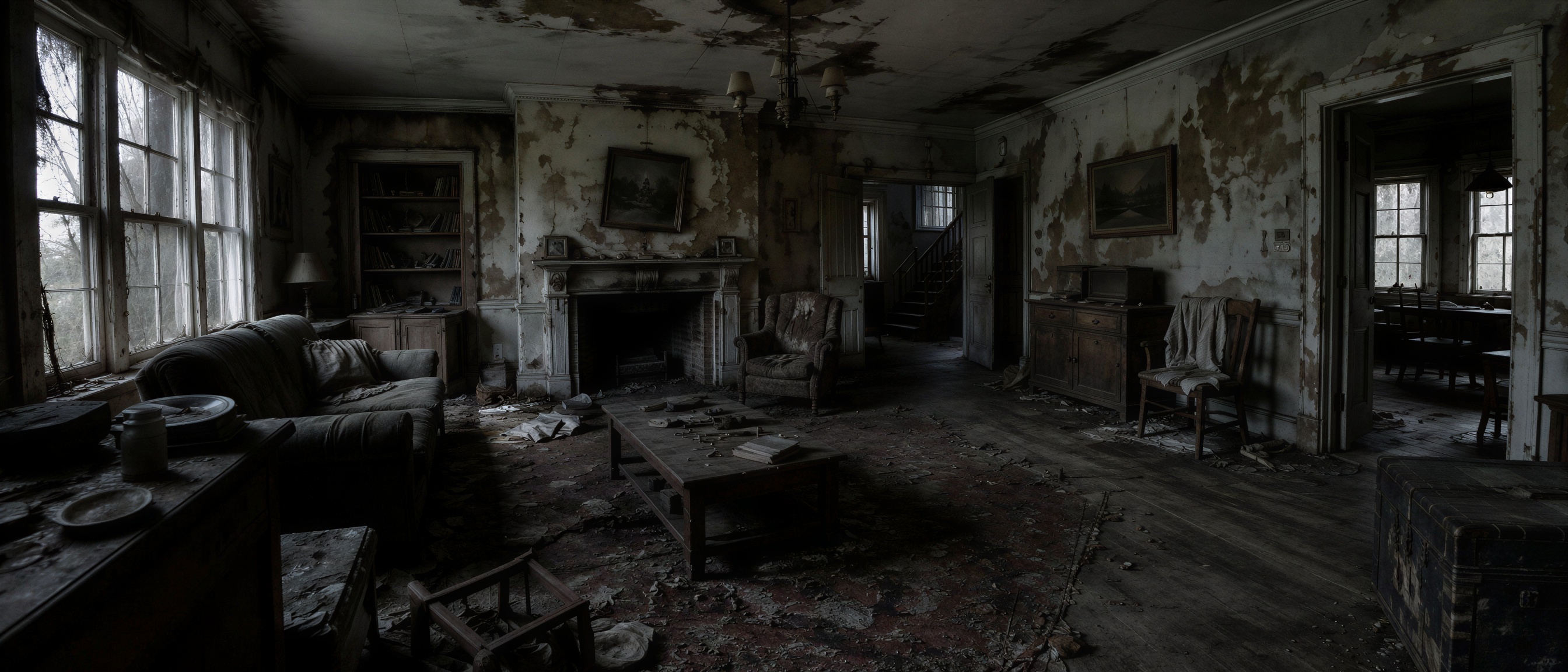 Before
FAQs.
What you can change, how to describe an edit and how to save your photo.
Compare plansHow do I edit a photo with AI?
Sign in, upload a photo and describe what you want to change. Select Generate to create an edited version, then open the preview to check and download it. Vimugo's online AI photo editor follows text instructions, so you can get started without drawing a mask or selecting areas by hand.
Can I change the background of a photo?
Yes. Describe the new setting and what should stay in the picture. For a product photo, try “Place this shoe on a rocky mountain at sunset. Keep the shoe's colors, shape and laces.” You can also ask for a plain studio background or a softly blurred backdrop.
Can I remove unwanted objects from a picture?
Ask the AI to remove a specific object and describe its location, such as “Remove the cup from the left side of the table and keep the wooden surface.” AI edits can also change nearby details, so review the result before using it.
What should I write in an editing prompt?
State the change first, then name the details to preserve. For example: “Make the room brighter with warm daylight. Keep the windows, fireplace and camera angle.” You can ask for color changes, lighting adjustments or a different visual style. Start with one clear change, then refine the result if needed.
Which image files can I upload?
Upload one JPG, PNG or WebP image up to 5 MB per request. Start with a clear photo where the subject is easy to see, and use an image you have permission to edit. The editor accepts still images, not video files.
Can I edit an image I created in Vimugo?
Yes. Open one of your saved images in the preview and select Edit. It opens here as the source image, ready for your instructions. If you need a new starting point, use the AI image generator to create one from text.
Is the AI photo editor free to use?
Photo editing is available on paid plans and uses the credits shown beside Generate. Daily free credits apply to image generation, not editing. You can compare the available plans before subscribing.
How do I download my edited photo?
Open the finished result and select Download to save a JPG copy. The edited image is a new file, so your original upload is not overwritten. Recent results are also available in your profile. JPG downloads do not include transparency.
Edit images with a prompt.
Upload a photo or start with an image from the AI image generator. Describe a new background, remove a distracting object or adjust the lighting to create your next version.